
Documentation embedded in this build.
Filing a file
You have a document. It belongs to a piece of work, it is sensitive to some degree, and you need to put it somewhere other people on that work can get it — and nobody else.
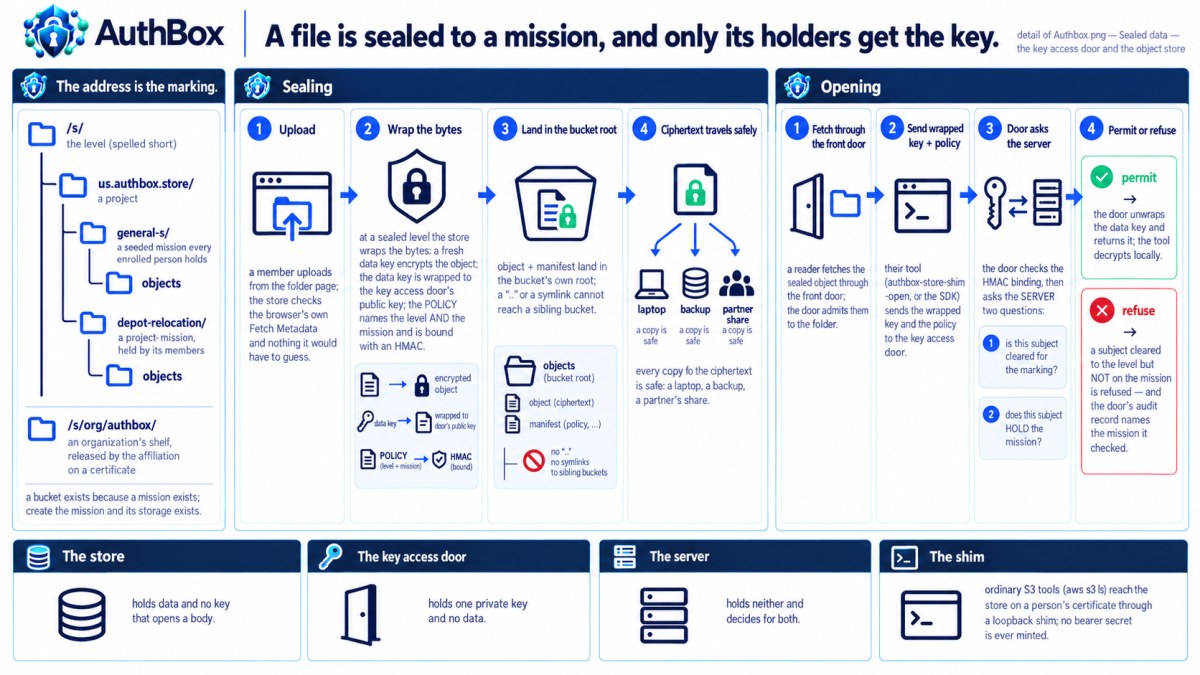
There is no form to fill in and no bucket to ask for. Where it goes and who can read it are already decided by the mission you file it against.
Where things go
An address says everything about a file here:
store.<your-deployment>/<how sensitive>/<whose work>/<the file>
For example:
store.example/s/harbour-watch/depot-relocation/survey.pdf
Read it back to front: survey.pdf is the file, harbour-watch/depot-relocation is the mission it belongs to, and s is how sensitive it is — your deployment's short spelling of SECRET. (The short spelling is your operator's choice: they configure one per classification, and a deployment that configures none writes the level's own name in lower case, /secret/.)
There are two kinds of place to put something, and both are two segments below the level:
| Where | Who can read it |
|---|---|
<project>/<mission> |
the people on that mission |
org/<name> |
one organization, by the one on your certificate |
A general shelf is a mission too — an ordinary project mission the deployment seeds, one per classification, so us.authbox.store/general-s is a first-row address like any other. It is on your front page because you hold it, not because the store reserved a word for it.
Filing one from the browser
Go to store.<your-deployment>. The front page is your folders, in three groups: General, the deployment's own shelf at each classification you are cleared for; Organization, your organization's shelf at each of those levels; and Missions, one folder for every other mission you hold. Nothing on this page is a folder the door would turn you away from. The General and Missions cards came from the deployment's own catalog, which already answered whether you hold each one; the organization cards came from asking its clearance authority about you by name, level by level, and drawing only what came back yes.
If the General group is empty, it says so, and the sentence is worth reading: the deployment seeds one general bucket per level under its own project, so a deployment that shows none there has not seeded them. That is an operator's job and not yours — ask them to add the missions rather than looking for a folder that was never created. A General group with some levels missing is the ordinary thing: those are the levels you are not cleared for.
Walk into the folder the file belongs in, then use the Upload to form at the foot of the page, headed with that folder's own name — it uploads into the folder you are standing in. Nothing asks you to choose how sensitive the file is or which mission it belongs to; the folder you are in already answers both, and the form says so: everything filed here is SECRET and sealed to hw/depot-relocation, in your deployment's own words.
Folders inside a folder
A folder here is a prefix on the keys under it — not a record somebody created. Nothing was provisioned, there is no directory to make and nothing to delete: the folder reports/2026 exists because something is filed under reports/2026/, and it stops existing when the last of those is removed. That is exactly what an S3 client sees, because it is the same answer.
Three things follow, and the page offers all three:
- File into one. The upload form's Into a sub-folder field takes a relative path —
reports/2026, separated by/, with no leading slash. The file lands at<this folder>/reports/2026/<filename>, and the sub-folder is on the listing at once. Leave it empty to file where you are standing. The path is checked by the same rule an object key is checked by, so a name this form takes is a namercloneand the AWS CLI take. - Make one. The New folder control asks for a name and takes you to that folder's own page, whose upload form is headed with its name. It writes nothing — there is nothing to write — and the page you land on says so: this folder exists once something is filed in it. File the first object and the folder is on both faces of the store.
- Walk the whole thing. The Tree view beside Folders draws the bucket as a file browser does: folders open and close, objects are leaves, and the row you choose fills the pane beside it with its size, its date, the marking it travels under, the mission it belongs to and the address you could paste. It opens one level at a time on purpose — a bucket with a million keys in it never loads whole — and every closed folder is an ordinary link to its own page, so it works with JavaScript turned off exactly as it does with it on.
There is no move and no rename. A key here is immutable, and "move" is what it is in every S3 store: copy the object to the new key and delete the old one, from a client that speaks S3.
rclone moveto authbox:s/harbour-watch/depot-relocation/survey.pdf \
              authbox:s/harbour-watch/depot-relocation/reports/2026/survey.pdf
That is two acts with two answers from the door, and either can be refused on its own — which is why the store does not offer it as one button that might half-happen.
Uploading a whole folder
Where your browser offers it, the upload form also takes a directory: pick one and every file in it is filed under this folder, keeping the path it had on your computer. Each file is its own upload with its own answer from the door, and you see a line per file as it lands or is refused.
There is no rollback, and that is deliberate rather than missing. A folder half filed is a folder with some files in it and a list of which were refused — the store undoes nothing, because undoing somebody else's write is a decision it has no business taking. If some were refused, the reason is on the line beside the name: it is the door's own sentence or the store's, the same one curl would have been given.
The address at the top of the page is the folder's own. Where your operator has told the store the deployment's domain, it reads store.<your-deployment>/s/harbour-watch/depot-relocation/ — the thing you could paste to somebody on the mission. Where they have not, it is the path alone, /s/harbour-watch/depot-relocation/, and the masthead carries no links to the deployment's other doors. That is not a fault: the store sits behind the front door, which rewrites the address on the way through, so a store that has not been told its own name prints the half it knows is true rather than one it would have to guess.
If an upload is refused as coming from another page, you almost certainly are on another page. The form at the foot of a folder is the only thing that may upload here — your certificate is attached to every request your browser makes, so a form somebody else served could otherwise file on your name — and the store reads a header your browser writes to tell the two apart. Reload the folder page and use the form on it.
A folder at a sealed level says what it is sealed to — the level and the mission — and each file in it says how to open one: a browser receives ciphertext, and authbox-store-shim -open is what turns it back into the document.
There is no link you can send somebody. Other stores let you mint a URL that opens for whoever holds it; this one has no such thing, because a link that works without a certificate is a credential, and there are none here. To let somebody read a file, they need to be on the mission — which is a thing you ask for, not a thing you paste.
The folders you see are yours. The page did not work them out — it asked, twice: the deployment's own catalog, as you, for your missions, and its clearance authority, about you by name, for your levels. If a mission folder you expected is missing, that tells you something worth knowing: an application can never widen what you are allowed to see. It can only show you less. Your own list, unnarrowed, is on your portal.
If the missions group is empty it says why, because there are three different reasons and they mean different things. You may hold nothing this store could be told about; you may hold missions that are organization-wide, which have no folder at all — a folder's address is <level>/<project>/<mission>, two segments below the level, so only a mission authored in a project workspace has one; or you may hold project missions created without a classification, which have no level to live at.
files.<your-deployment>/upload is a different page doing a different job. It is the stream demonstration, not filing: a file sent there becomes one frame, fanned out by its marking to whatever is cleared to receive it, with a receipt per batch — the store is one of the places it can land, in the bucket that sink was configured with. Use store.<your-deployment> to put a document somewhere; use the stream page to watch a stream work.
Filing one from the command line
Anything that speaks S3 works. rclone, s3fs and most SDKs can be handed your certificate directly:
rclone copy survey.pdf authbox:s/harbour-watch/depot-relocation/
The AWS CLI cannot present a certificate, so run the small local helper first and point the CLI at it:
authbox-store-shim -listen 127.0.0.1:9000 -store-url https://store.example \
  -cert you.pem -key you-key.pem -ca ca.pem -open

aws s3 cp survey.pdf \
  --endpoint-url http://127.0.0.1:9000 \
  s3://s/harbour-watch/depot-relocation/
The helper holds your certificate and runs on your machine only. Nothing it does puts a password or a key anywhere — there is no access key to copy, lose or leak, because there isn't one.
What happens when you are not allowed
You get a refusal, and it will be one of two kinds. Knowing which saves you asking the wrong person:
- You cannot reach the address at all. You are not on that mission, or not cleared for that level. Ask for the mission — see Asking for access.
- You reached it and cannot read what is in it. The file itself is marked for somebody else — another organization, or a compartment you do not hold. Being on the mission is not the same as being allowed everything filed under it.
Neither is a bug and neither is worth retrying.
There is a third answer that is neither, and it is worth recognising because it used to look like the first: the address names nothing. A typo in the level segment, a mission folder that does not exist, a path your browser asked for on its own — the store answers that it cannot tell what the address means, rather than that you may not have it. That refusal concerns no object, so there is nothing to mark it with and it travels at the lowest level this store serves; the page's masthead prints that level, and it is the label the refusal is travelling under rather than a statement about anything you asked for. Check the address before you ask anybody for access.
Why some files are unreadable even after they are copied
Above a certain sensitivity, files are stored sealed: encrypted, with the key held by a separate service that hands it over only after checking two things — that you are cleared for that particular file, and that you are on the mission it was filed against. Being cleared to SECRET is not enough for a SECRET file in somebody else's mission folder, and that is true of a copy of it as much as of the original.
This matters in a way worth understanding. If somebody copies the whole store to a laptop, or restores an old backup to the wrong place, those files are still unreadable. The protection travels with the file rather than staying behind with the server.
You will not normally notice. Tools that ask for the key automatically — the browser, and the local helper with -open — hand you the ordinary file. Without it you get the encrypted form and a small piece of text saying which service holds its key, which is what you want if you are archiving it rather than reading it.
Getting a place to put a new piece of work
You do not request one.
Create the mission, and the place exists. When your project's administrator creates a mission, the storage for it appears — at the sensitivity the mission was created with, open to the people on that mission, and to nobody else. Nothing is provisioned, nobody files a ticket, and no storage team is involved.
This is why the store's front page has no New bucket button and carries a link to the portal instead. A store that could create a mission could also decide who was on it — and since being on the mission is what gets a sealed file opened, that store would be able to answer, in advance, the question that releases the key. So it does not: authoring is the portal's, and the store only ever reads the answer.
If you are the administrator, that is Project missions. If you are not, the person who runs your project is who to ask.